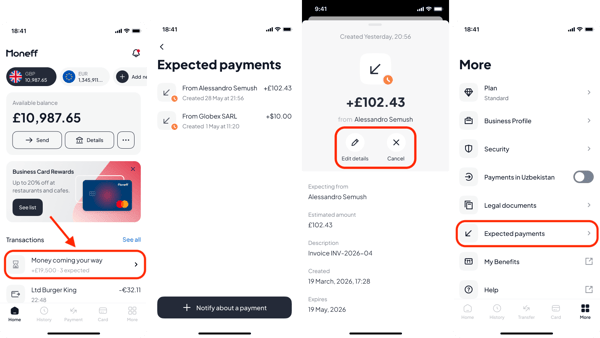
Expected Payments is a tool designed to ensure your incoming bank transfers settle into your account smoothly and without delays.
Below is a step-by-step guide to logging an expected payment via the Web Dashboard or the Moneff Mobile App.
Using the Web Dashboard
Step 1: Locate the Feature
- Log in to your Moneff Web Portal.
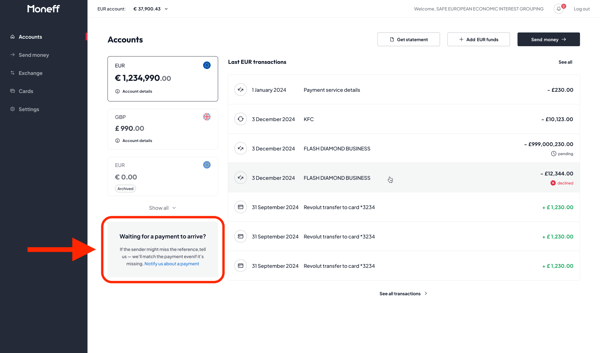
- On the left-hand navigation menu, click Accounts and select the specific currency account you are expecting the funds to arrive in (e.g., EUR).
- Look for the "Waiting for a payment to arrive?" prompt box located underneath your main account balance, and click the "Notify us about a payment" link.
Step 2: Fill Out the Transfer Details
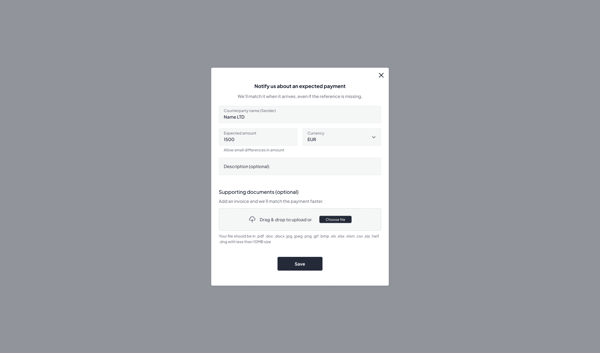
A pop-up window titled "Notify us about an expected payment" will appear. Fill out the following fields:
-
Counterparty name: Enter the exact legal or business name of the person/company sending you the money (e.g., Name LTD).
- Expected amount & Currency: Type the payment amount and make sure the correct currency is selected in the dropdown.
- Description (Optional): Enter an internal note for yourself, such as the related Invoice Number (e.g., INV-2026-04).
- Supporting documents (Optional): Drag and drop your official invoice or billing agreement into the upload portal.
- Click the Save button at the bottom of the form.
Step 3: Managing Open Claims
Once your claim is successfully logged, you can track its lifecycle or make adjustments directly from your main interface.
-
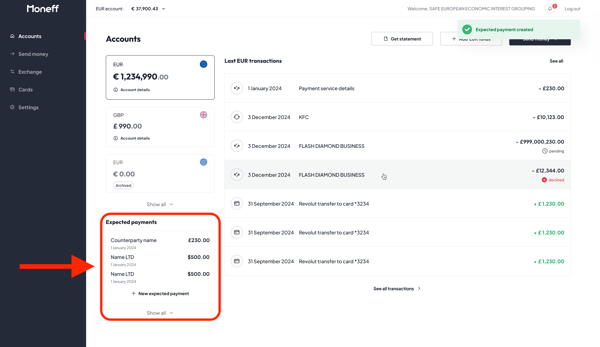
Locate the Active Queue: Look at the bottom-left column of your main Accounts page, directly beneath your active currency accounts, to find the "Expected payments" ledger.
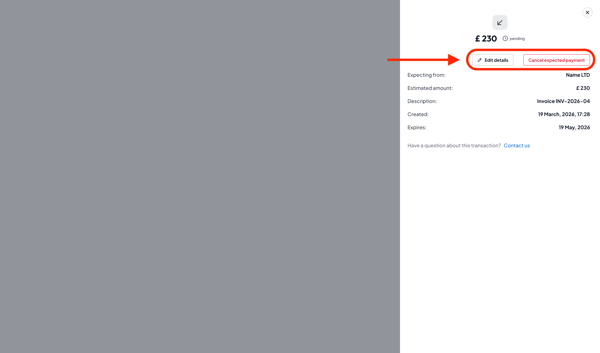
- Open the Specific Record: Click directly onto the pending transaction name you wish to inspect (for example, clicking on Name LTD).
- Editing: To update your instructions, click the Edit details button featuring the small pencil icon at the top of the panel. This re-opens the intake form so you can adjust the estimated amount, update the description line or upload a new supporting file.
- Cancellation: Click the red Cancel expected payment button at the top right of the panel. This instantly removes the record.
Using the Moneff Mobile App
Step 1: Locate the Feature
- Open your Moneff app to the main Home screen.
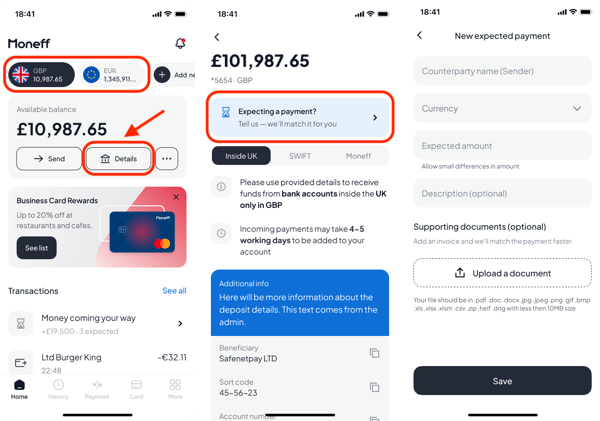
- Select any currency account (e.g., GBP or EUR) from the top menu.
- Beneath your available balance, tap the Details button.
- On the following screen, tap the blue banner saying: "Expecting a payment? Tell us — we'll match it for you".
Step 2: Fill Out the Transfer Details
Once the "New expected payment" screen opens, fill in the details of your incoming transfer:
-
Counterparty name (Sender): Enter the legal or business name of the paying customer.
- Currency & Amount: Select the correct incoming currency from the dropdown and type the exact expected amount.
- Description (Optional): Add a personal reference note, such as the Invoice Number.
- Supporting documents (Optional): Tap Upload a document to attach your digital invoice directly from your smartphone's files.
- Once everything is filled out, tap the Save button at the bottom of your screen.
Step 3: Managing Open Claims
Once your first expected payment is logged, a new "Money coming your way" widget will automatically appear on your main Home screen under the Transactions section.
- Tap this widget to view your list of active expected payments.
- Tap on any specific payment in your list to open its details page.
- To edit your instructions, click the Edit details button featuring the small pencil icon at the top of the panel. This re-opens the intake form so you can adjust the estimated amount, update the description line or upload a new supporting file.
- To delete the record entirely, tap the "X" icon labelled Cancel.
- You can also access this list at any time by tapping the More icon in the bottom right navigation bar and selecting Expected payments from the menu.