
You add them in the Moneff app or web account. Please don't send your tax number in chat or by email.
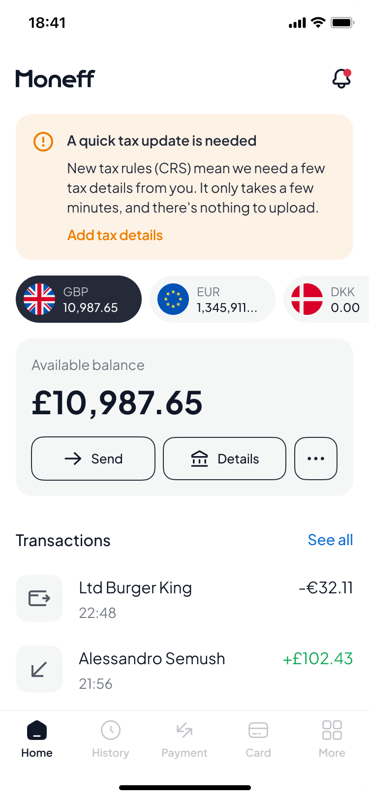
- On the home screen, find the banner A quick tax update is needed and tap Add tax details.
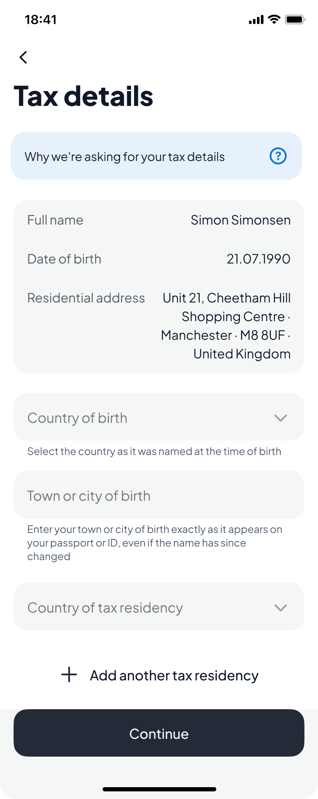
- Check your name, date of birth and residential address at the top. You can't change them on this screen. If something is wrong, contact us before you continue.
- Choose your Country of birth and type your Town or city of birth. See: Why do you ask where I was born?
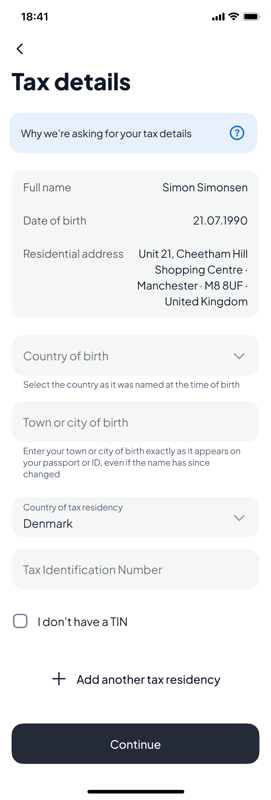
- Choose your Country of tax residency. Not sure which? See: Which country is my tax residency?
- Type your Tax Identification Number for that country. If you don't have one, tick I don't have a TIN and write a short reason (see I don't have a TIN or NIN). For some countries, the tax number field doesn't appear at all; that is expected (see Why is there no TIN field for my country?).
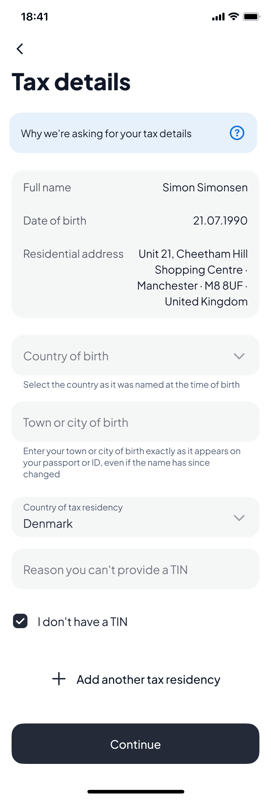
- Tax resident in more than one country? Tap Add another tax residency and repeat steps 4 and 5. Tap Remove to delete a row you added.
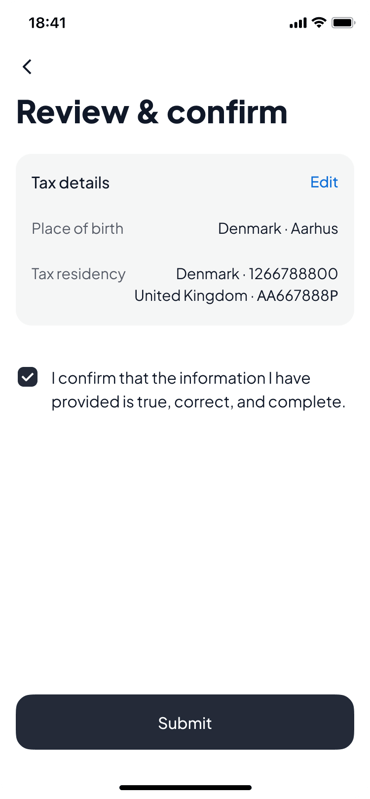
- Tap Continue. On Review & confirm, check everything. Tap Edit to change anything.
- Tick I confirm that the information I have provided is true, correct, and complete, then tap Submit.
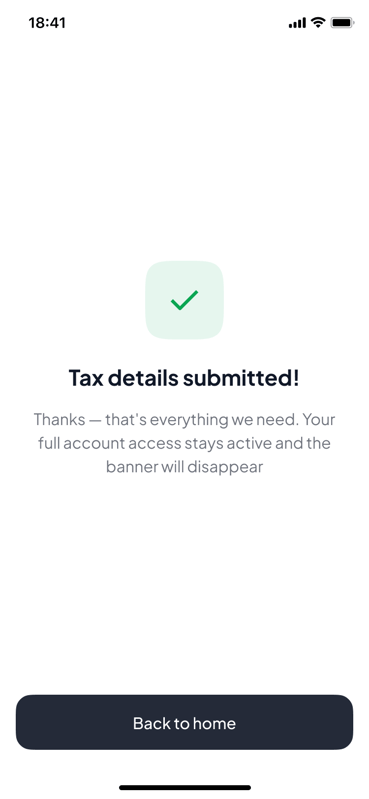
- You'll see Tax details submitted! The banner disappears, and you don't need to do anything else.
Need to change something after you've submitted? Contact our support team and they'll help you update it.
Opening a new account? You'll see the same questions during sign-up.