
An authorised signatory adds them in the Moneff app or web account. Most companies need only a few minutes, and there is nothing to upload.
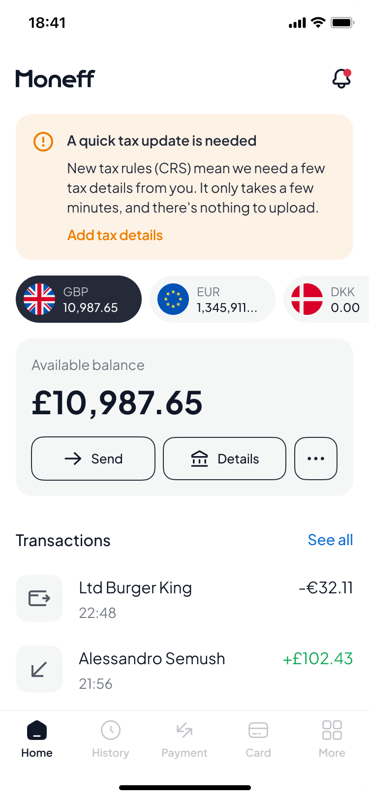
- On the home screen, find the banner A quick tax update is needed and tap Add tax details.
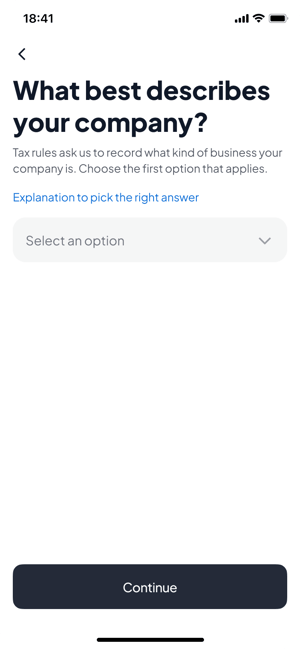
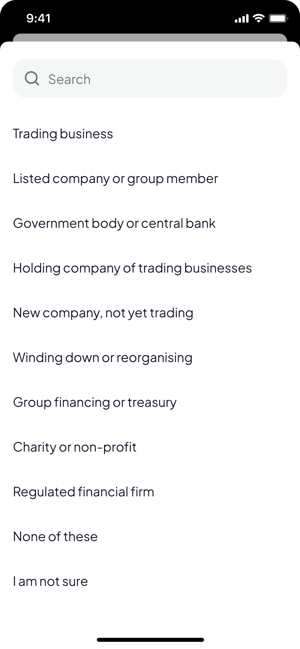
- Answer What best describes your company? Choose the first option that is true. Not sure which one? See: What best describes your company?
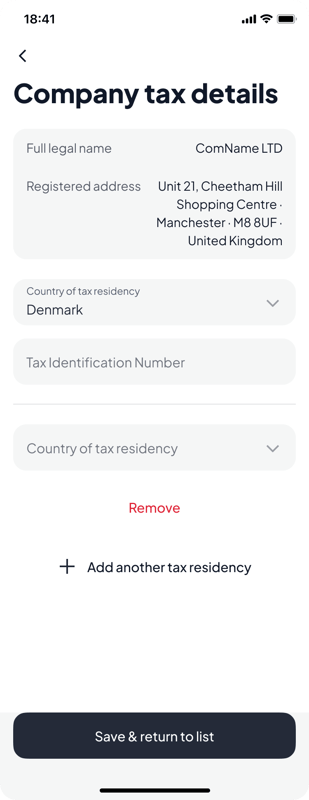
- On Company tax details, choose the Country of tax residency and type the company's Tax Identification Number. If the company is tax resident in more than one country, tap Add another tax residency (see: Our company is tax resident in more than one country).
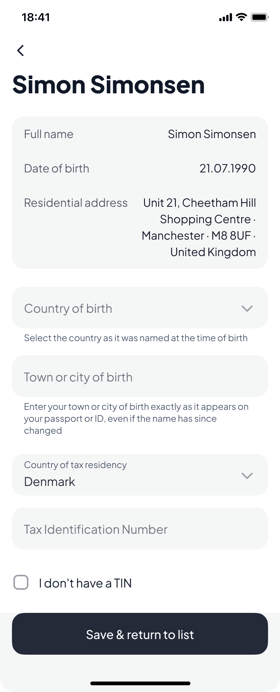
- Only if you chose "None of these" or "I am not sure": you'll see Tax details for your company, with the company and the people we need details for. Open each one, fill it in and tap Save & return to list. You can tap Save and finish later and come back.
See: Whose tax details do you need?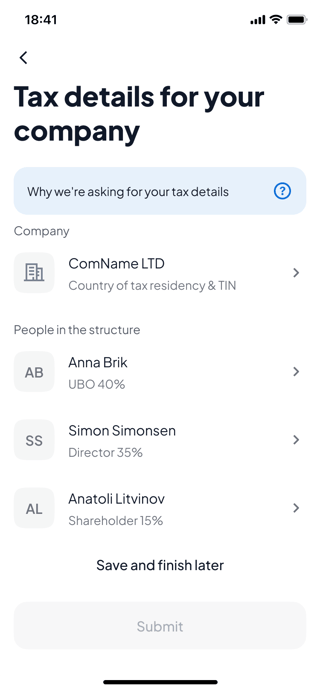
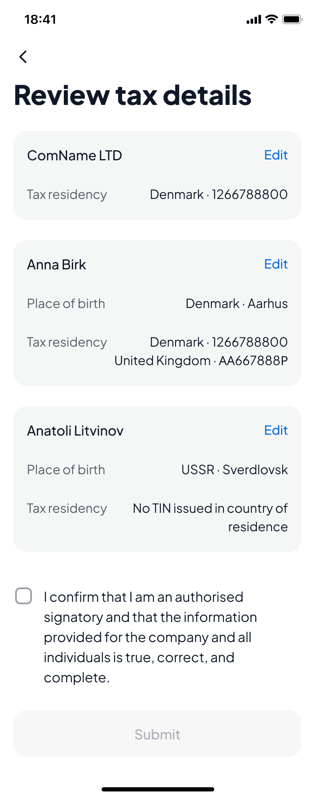
- On Review tax details, check everything and tap Edit to change anything. Tick the declaration that you are an authorised signatory and the information is true, correct and complete. Tap Submit.
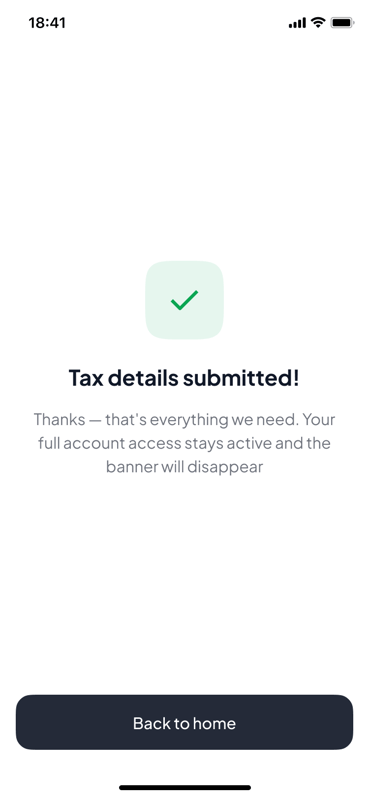
- When you see the confirmation, you're done, and the banner disappears.
Opening a new business account? You'll answer the same questions during sign-up.